Purchase orders
Purchase orders let you record orders placed with suppliers, track their status (New, Released, Received, Closed, Cancelled), and update quantities when goods are received. You can also see from a product’s detail page whether that product is on order and when it is expected.
Accessing purchase orders
Section: Top menu Warehouse > Purchase orders, or go to Purchase orders.
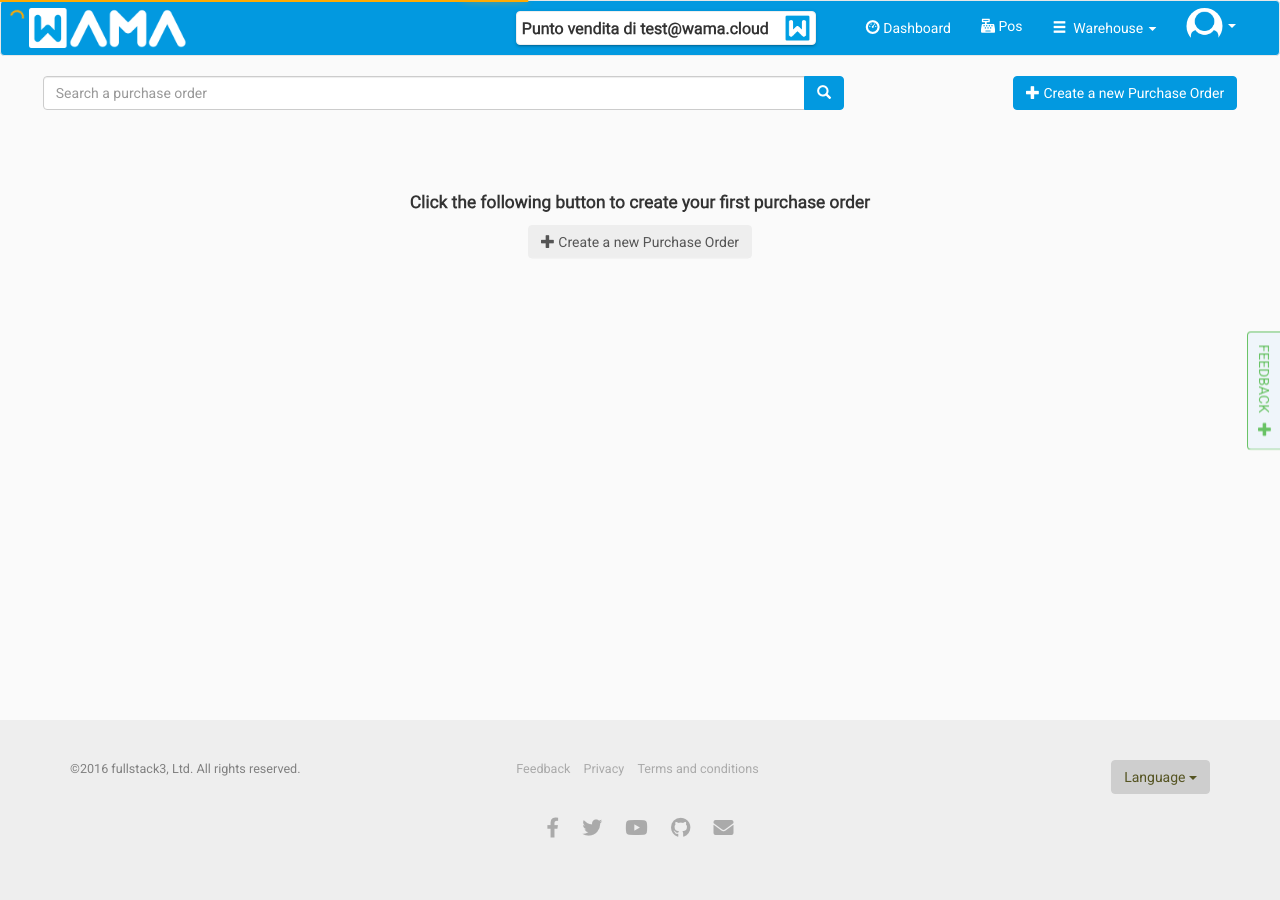
From the list you can:
- Create a new order: Click Create a new purchase order to add an order for a supplier, with lines (products, quantities, prices) and optional expected delivery date.
- Open an order: Click a row to open the order detail and edit lines, quantities, or status.
- Filter and sort: Use the table headers to sort; filter by status if needed.
Import from a document
When you create or edit a purchase order, you can upload a supplier invoice or order document (PDF, JPG, or PNG, up to 10 MB) instead of typing every line by hand.
Section: Purchase orders > Create or edit an order > Import from document.
How it works:
- Upload your file — Click Import from document and choose a PDF or a photo of the invoice.
- WAMA reads the document — WAMA scans the file to find the supplier, products, quantities, and prices.
- Matching with your catalog — WAMA compares what it found with your existing suppliers and products.
- Review before saving — The order is filled in automatically. Check the supplier, quantities, and prices, then save.
How products are matched
For each product line read from the document, WAMA searches your catalog and tries to link it to an existing product. It checks, in order:
- Product code — if the code on the document matches a product code in WAMA
- Barcode — if a barcode on the document matches a product in WAMA
- Product name — if the name on the document matches or is very close to a product name in WAMA
WAMA prefers an exact code or barcode match over a name match. If nothing in your catalog matches confidently enough, that line is not added to the order.
Note
Products must already exist in WAMA. Only products that are already in your catalog can be added to the order. If a product on the document is not in WAMA, that line is skipped. Add missing products first in Products, then import again or add those lines manually.
The same import is available in the WAMA Android app — open a purchase order and use Import.
Purchase order statuses
Orders move through these statuses:
- New: The order is saved but not yet sent to the supplier. You can change lines and quantities.
- Released: The order has been sent to the supplier (e.g. by email or marked as sent). You can still adjust the quantity outstanding per line.
- Received: Some or all goods have been received. You can record how much is still outstanding.
- Closed: The order is complete. All received quantities have been applied to warehouse stock. The order can no longer be edited.
- Cancelled: The order will not be fulfilled. No stock is updated.
When you close an order, warehouse stock is updated according to the quantity received (outstanding reduced to zero for those lines). Product quantities and stock history reflect the received amounts.
Recording received quantities
For each order line you can set the quantity outstanding: the amount still to be received. When you partially receive goods, reduce the outstanding quantity and save. When everything is received, set outstanding to zero and then close the order so that stock is updated.
Viewing purchase orders from a product
To see if a product is on order and when it is expected:
Section: Products > Click a product > Purchase orders tab.
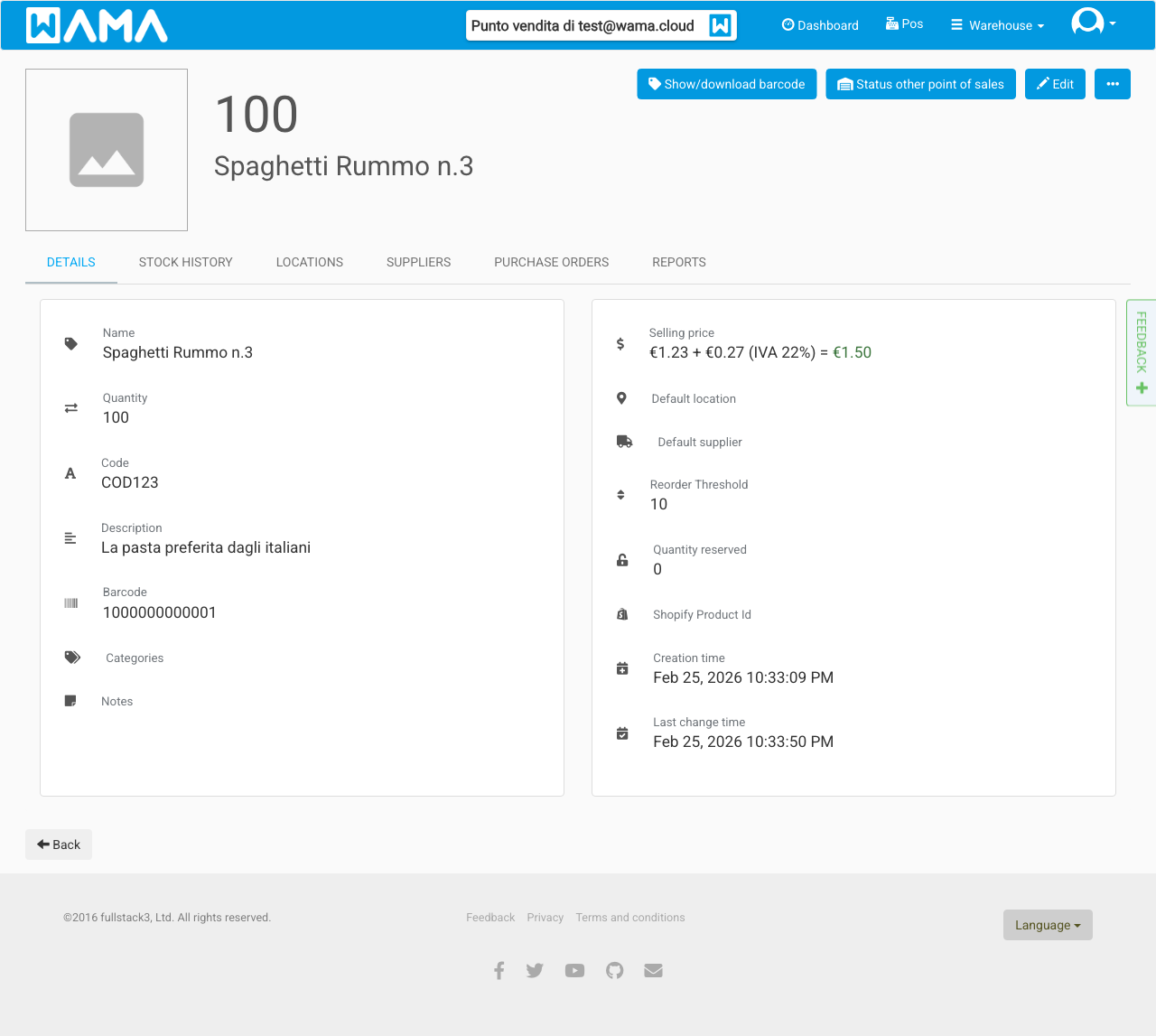
The tab shows only open orders (not closed or cancelled) and only lines that still have quantity outstanding > 0. For each line you see:
- Order: Link to the purchase order.
- Status: Order status (e.g. Released, Received).
- Quantity ordered and Quantity outstanding.
- Expected delivery: Shown in red if the date is in the past.
This data is loaded only when you open the Purchase orders tab, so product details stay fast.