Loyalty cards
Loyalty cards track reward points for customers. Open Warehouse → Loyalty Card (#/loyalty-card).
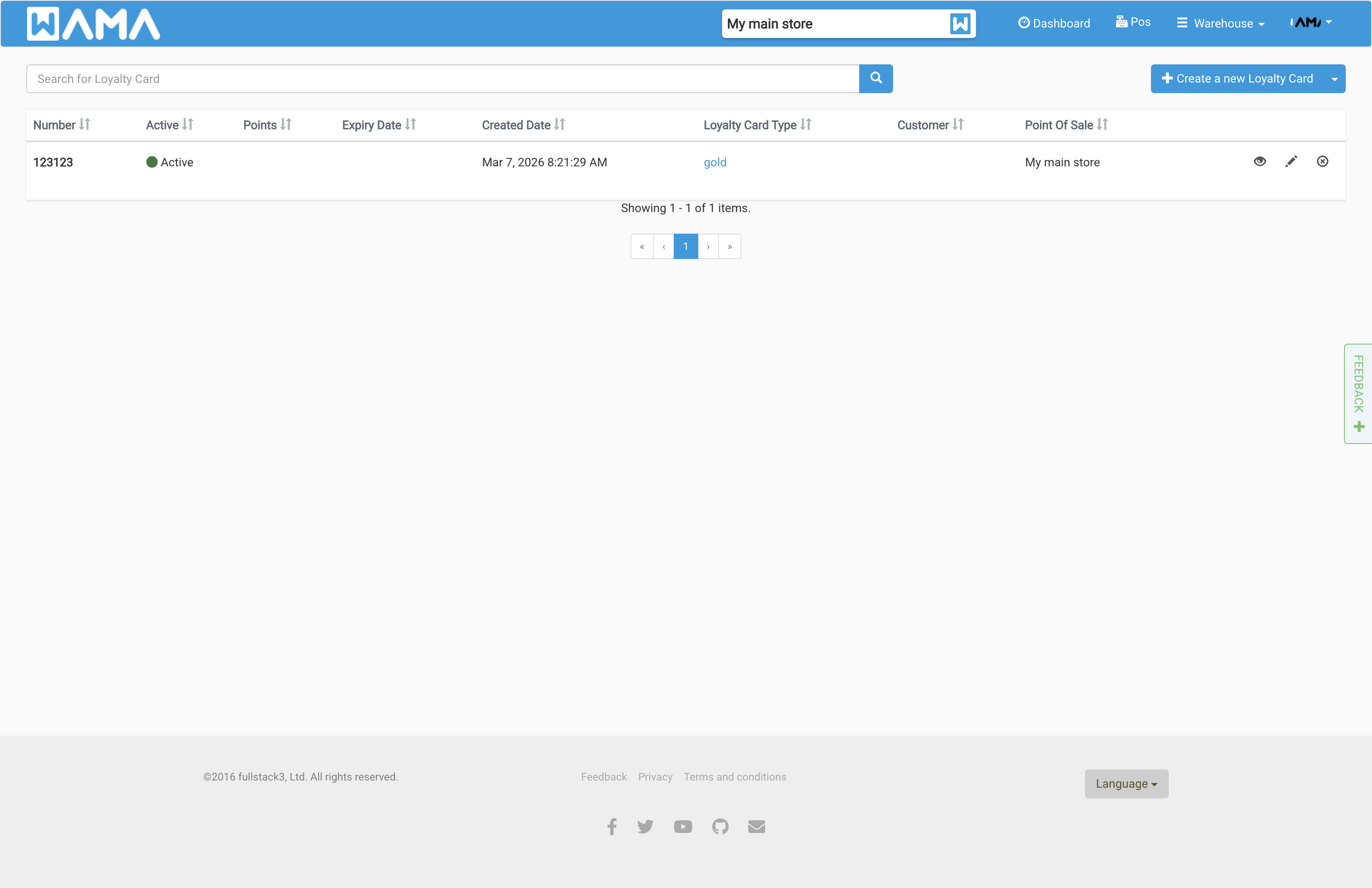
The list shows number, active status, points, expiry date, card type, linked customer, and point of sale.
Create a card
Click Create new Loyalty Card. Enter the card number, type, customer, and optional expiry date.
Card types
Use the ⋮ menu on Create new Loyalty Card → Create loyalty card type to define types (e.g. standard, VIP) before issuing cards.
Using points
Points can be updated from the card detail page.
Using a loyalty card when completing a sale
At checkout (POS or sales order), a loyalty card works together with the linked customer and optional customer price list.
Before checkout
- Create the card and link it to a customer.
- If you use customer price lists, assign a price list to that customer (see Customer price list).
- Optionally set a Loyalty card price on products (same card type as on the card) for an extra discount on those items.
At POS checkout
Open POS (#/pos), add products, then click Charge. In the checkout dialog:
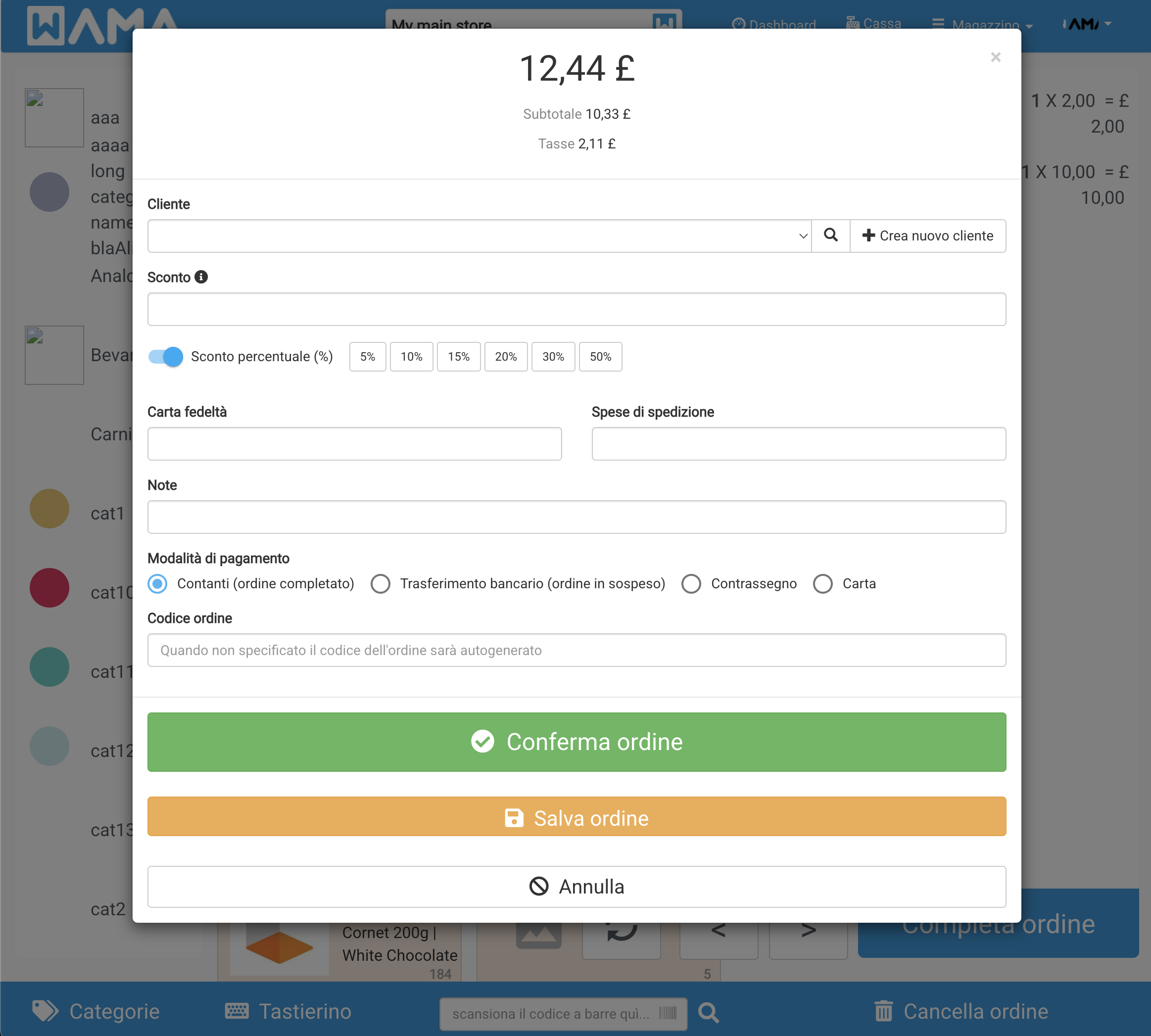
- Customer — Select the customer linked to the card. If they have a price list, their name shows
[price list name]and line prices are recalculated using that list. - Loyalty card — Enter the card number and click Apply. The card must be active and not expired. Valid cards apply loyalty pricing on products configured with the same card type.
- Skip customer price list — Shown when the selected customer has a price list. Turn it on to use standard selling prices instead of the customer list.
The order total, subtotal, and tax update whenever you change the customer, apply a card, or toggle the price list. Remove an applied card with the trash icon next to the card number.
The same Loyalty card field is available when editing a sales order in Warehouse → Sales Orders.