Sales orders
Create a new sales order
Tap the POS button on the bottom bar on phones, or in the side navigation rail on tablets, to start creating a new sales order.
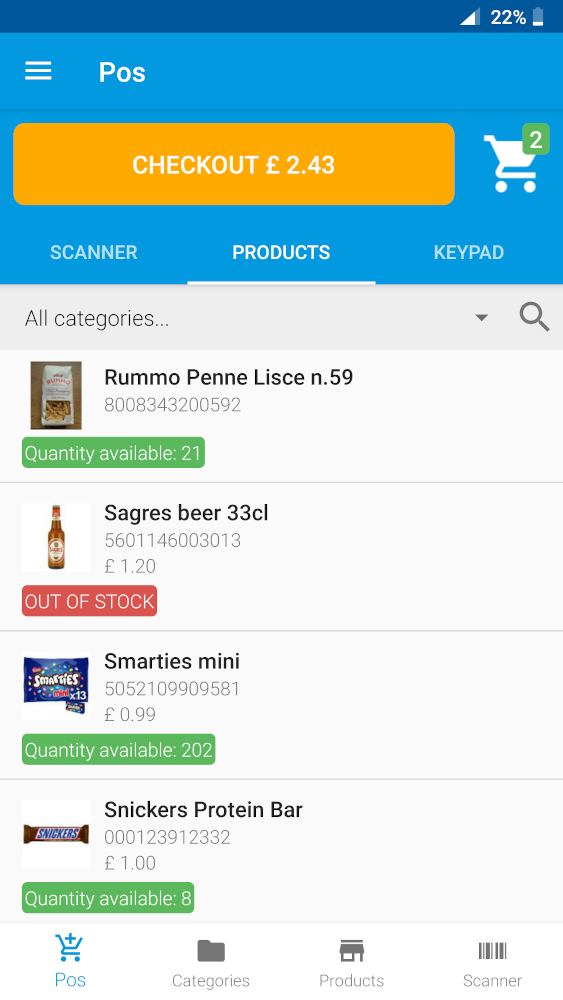
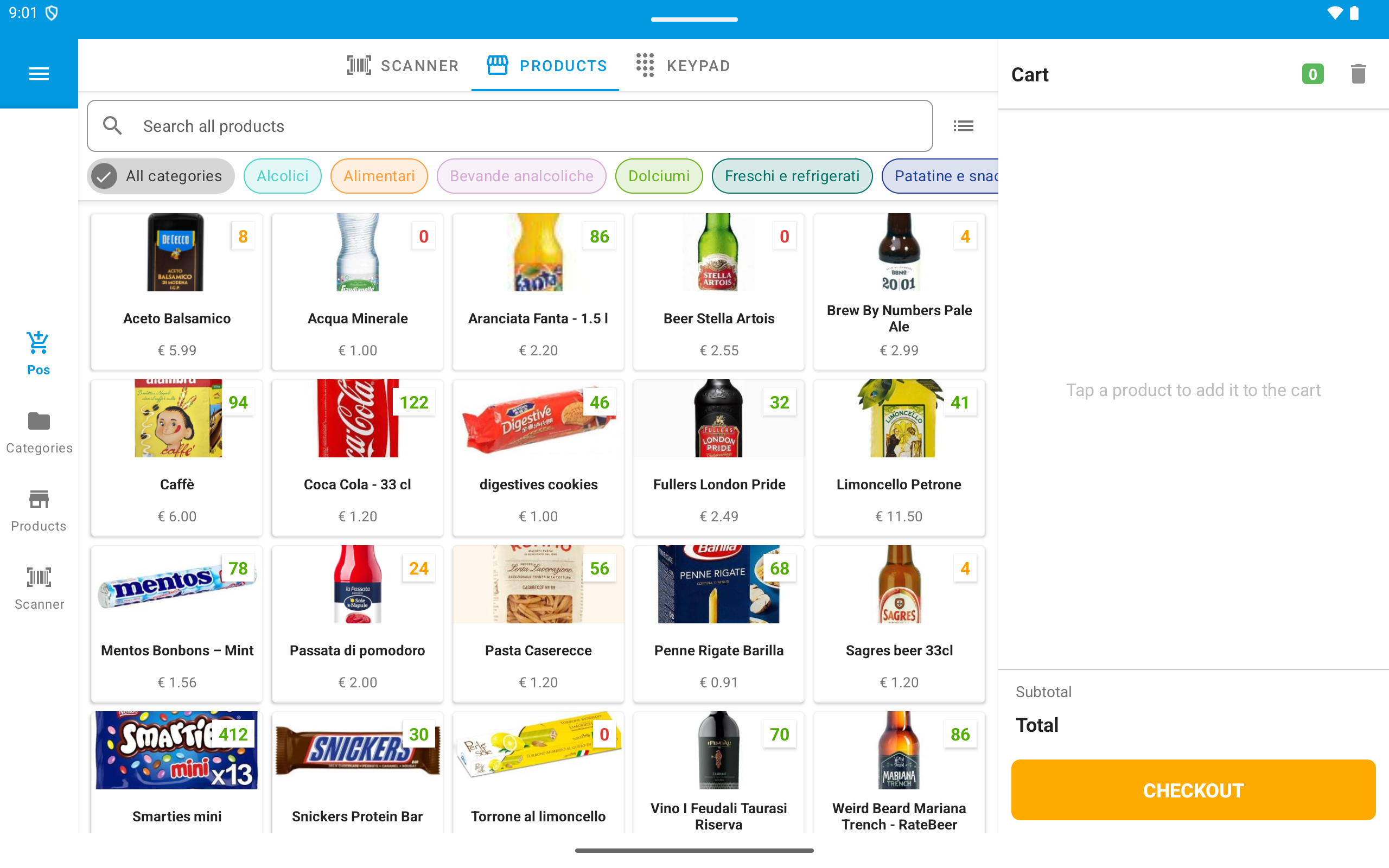
The main POS screen is composed of the following sections:
- 1. Add products section: use the Scanner, Products, or Keypad tabs to add items to the cart.
- Barcode scanner: Uses the device camera or an external barcode scanner to add products to the cart by scanning their barcode. Note the product needs to be previously created.
- Products list: Click on the available products to add them to the cart. It is possible to filter the products by category or search a product.
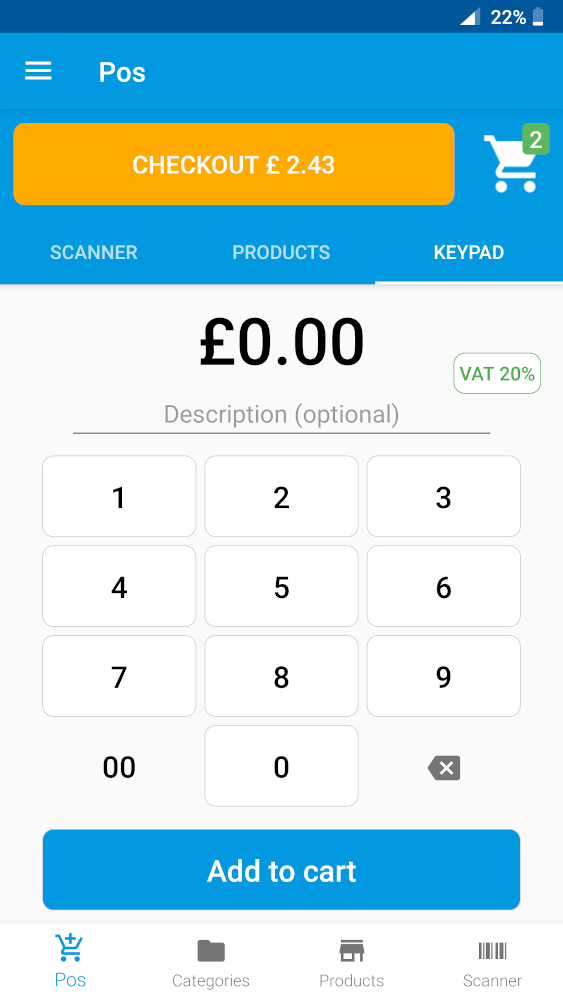
- Keypad: If the product is not available in the warehouse the keypad allows to add an entry to the cart with the price and description specified.
- 2. Cart: on phones, open the cart from the top-right button; on tablets, the cart stays visible in the side panel.
- 3. Checkout: review the order, choose payment and customer details, then place the order.
Keypad
With the keypad it is possible to add a manual entry to the sales order by specifying the price and the optional description.
Sale order details
To access the details of a sales order from the side menu click on Sales orders and select the desired sales order.
In this section it is possible to:
- View details: All the order details are showing in this section.
- Download the invoice: By clicking on the
Invoicebutton it is possible to download the invoice in PDF format. - Cancel the order: By clicking on the
Cancelbutton the order will be marked with status Cancelled, if the order was completed the stock will be reverted in the warehouse.
Sales Order statuses flow
Sales orders can be in three different statuses Pending, Completed and Cancelled.
- Pending: The order goes in the pending status when the payment is deferred (e.g. bank transfer payment method), or when there is no enough stock available. When the sales order is in pending status the product stock is not reduced.
- Completed: When the order is placed using cash as payment method and there is enough stock to satisfy the order the status of the order is set to completed
- Cancelled: The order can be cancelled from both
PendingandCompletedstatus. When the order isCancelledfrom the pending status no changes are made to the stock. When the order is cancelled from the completed status, the stock is restored automatically.graph LR; A[New Order] --> B{Payment method} B -->|Cash| C[Order Completed] B -->|Bank transfer| D[Order Pending] C --> E{Cancel order?} D --> E E --> |Yes| F[Order Cancelled]