Inventory check
Inventory checks let you verify product quantities on a phone or tablet. Count in base units, resume later if needed, and update stock only when you complete the check. Uncounted products are left unchanged.
For the full guide (scopes, statuses, and complete behaviour), see Inventory check.
Access inventory checks
Open the menu and go to Warehouse > Inventory check.
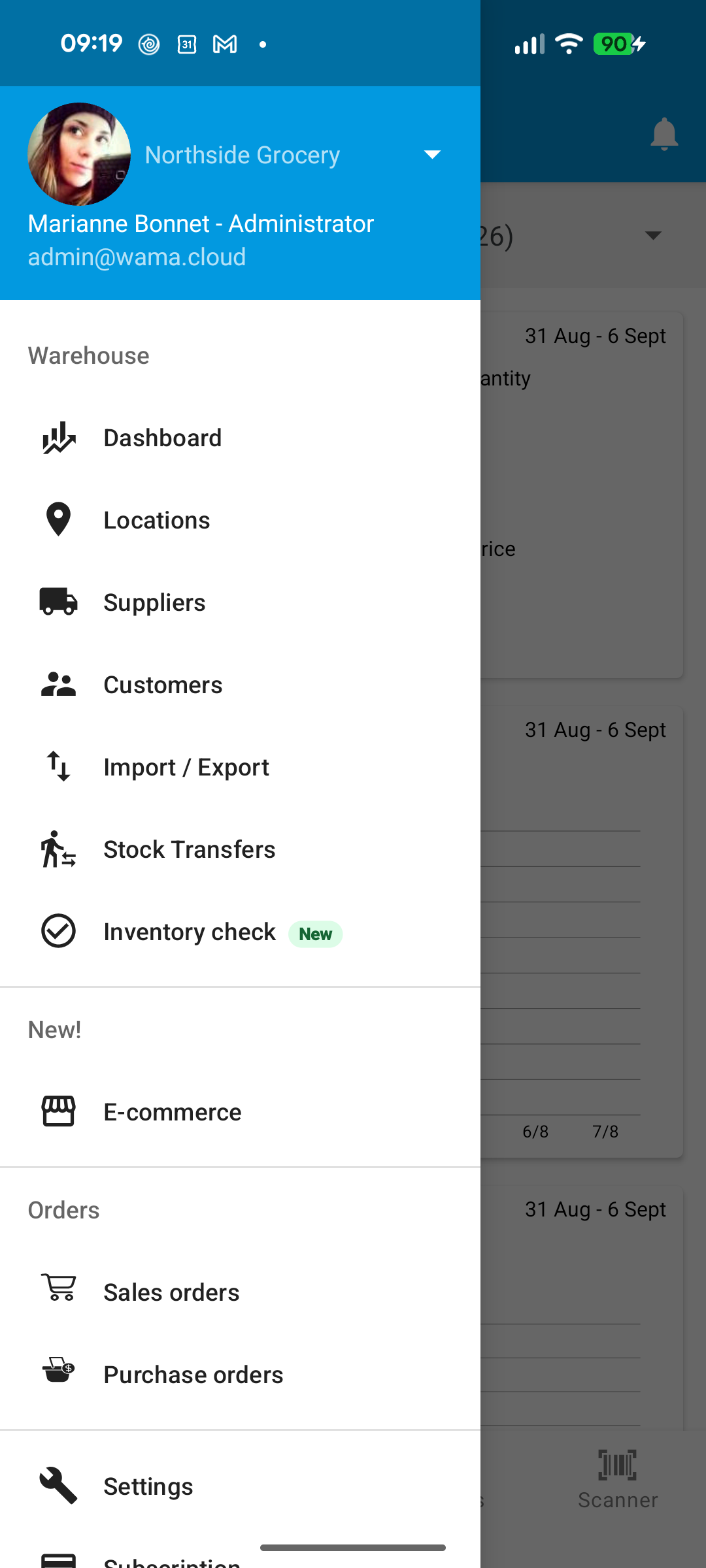
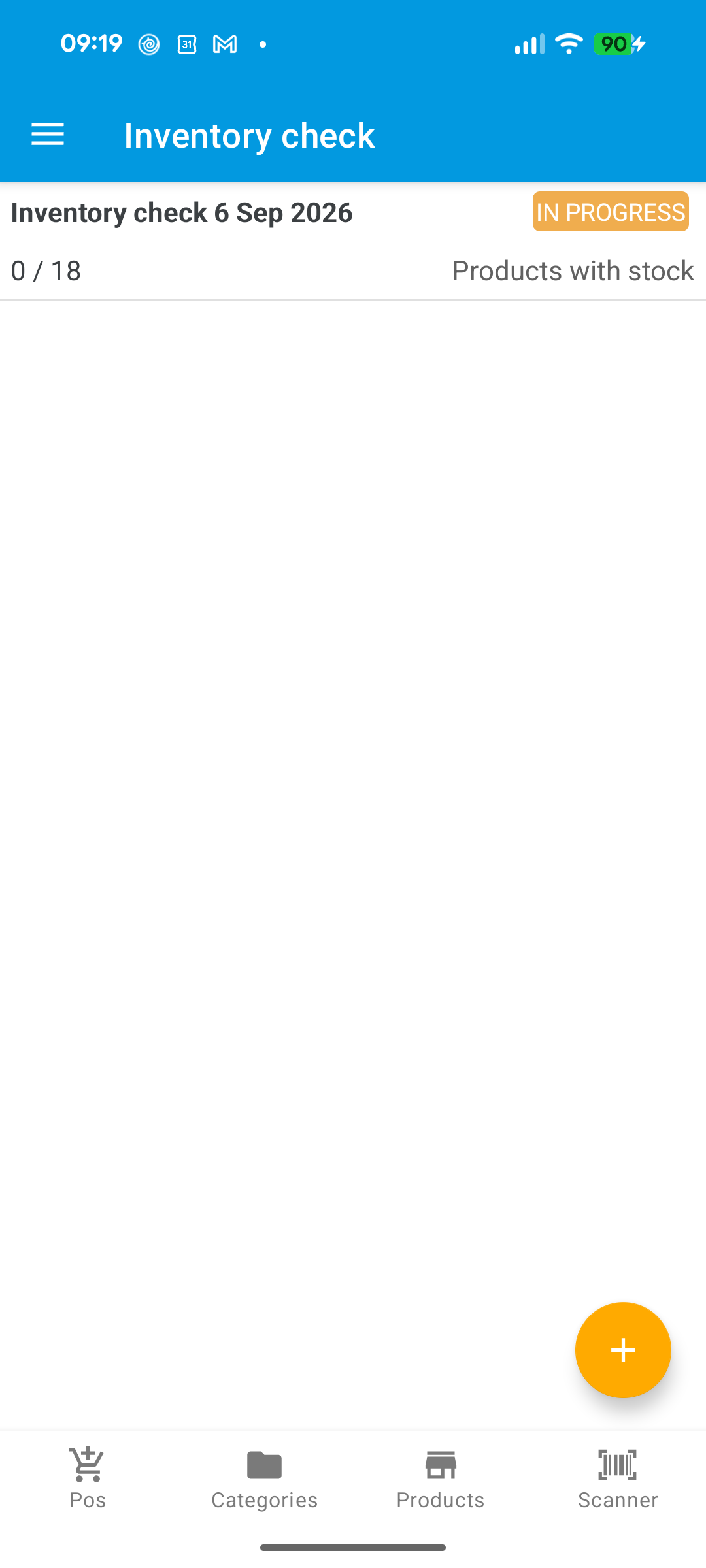
Warehouse assistants can also open inventory checks from the Products overflow menu.
Create and count
- Tap + to create a check.
- Choose a scope (all products with stock, all products, a category, or ad hoc).
- The check starts In progress so you can count straight away.
- On the count screen, use the Remaining, Checked, and Variances tabs.
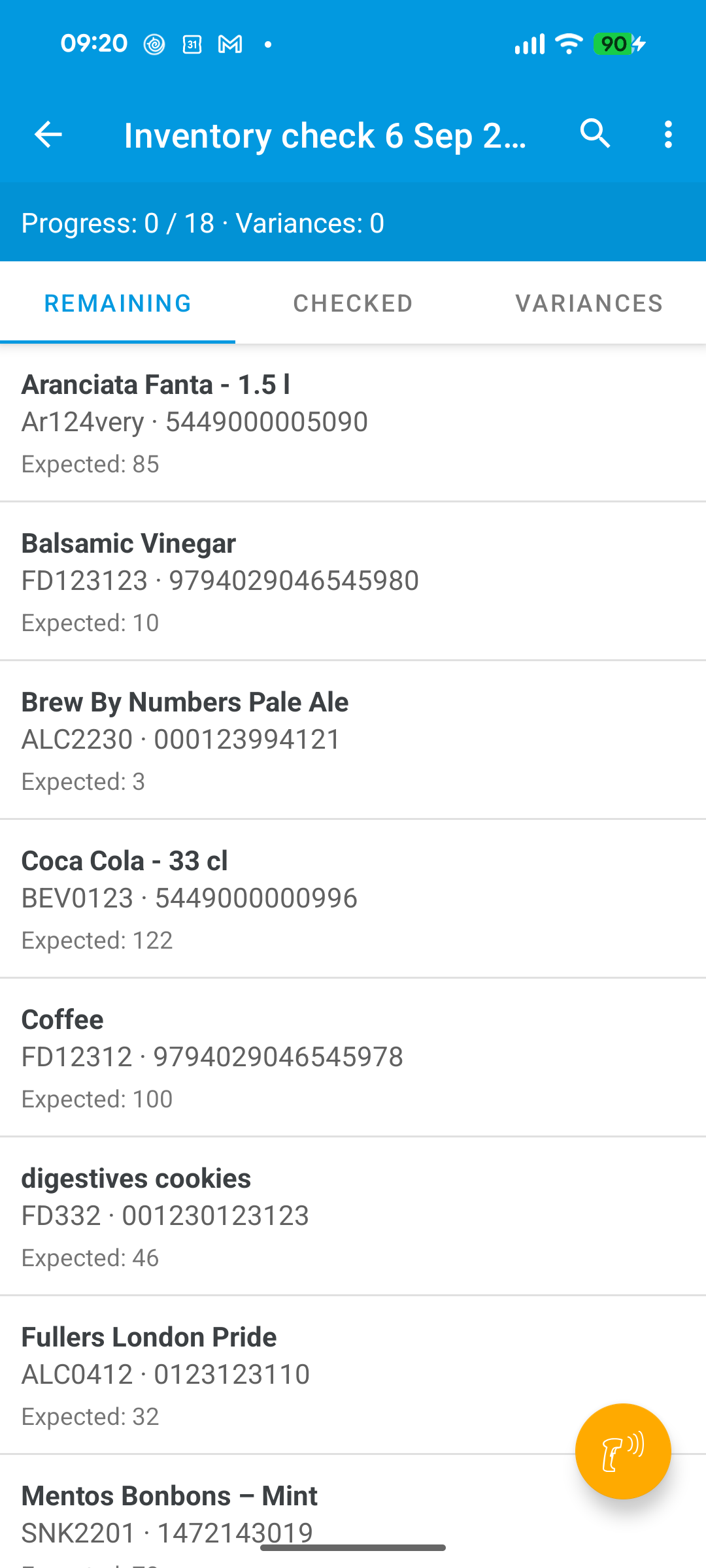
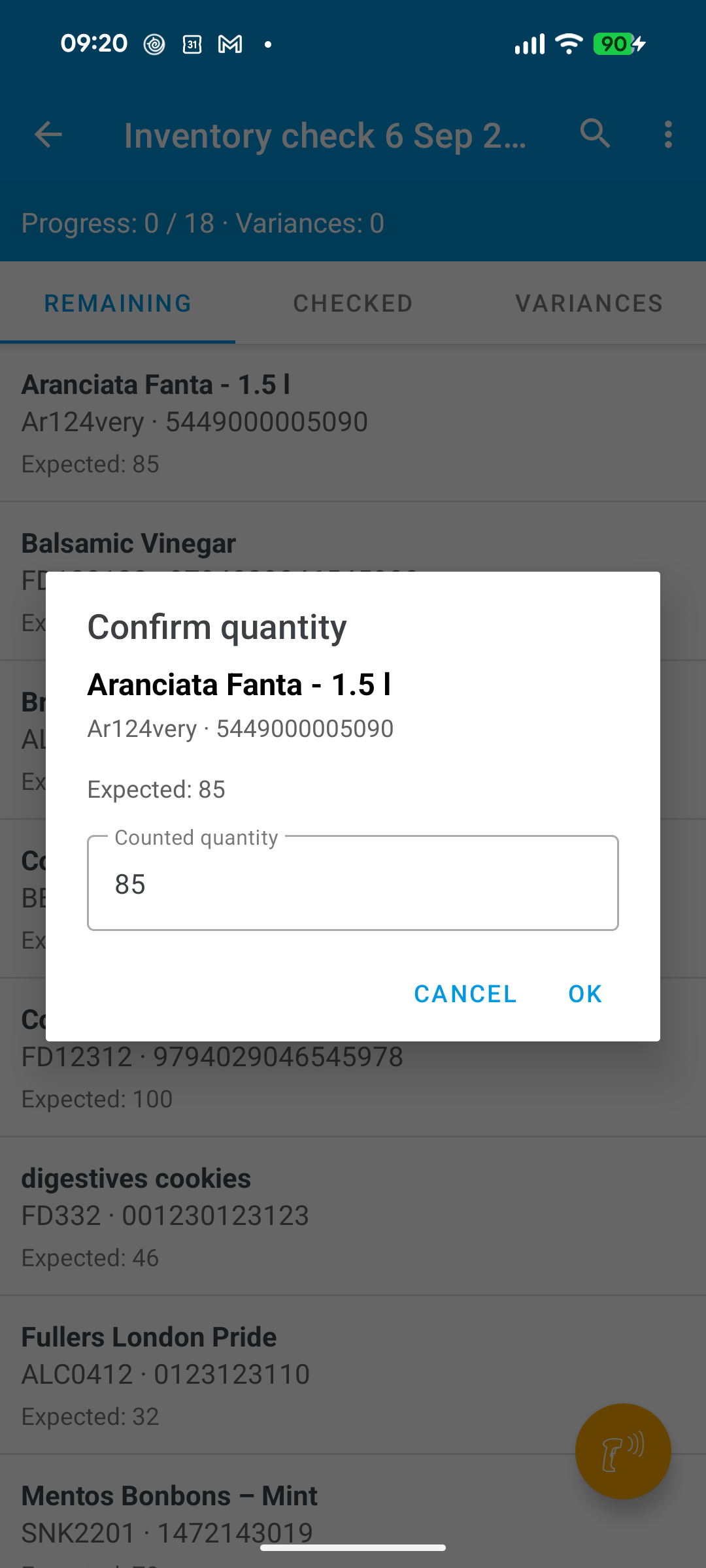
- Tap a product (or use search / the scan button) to enter the counted quantity.
- When finished, complete the check from the menu so stock is adjusted for variances only.
Note
Make sure the correct point of sale is selected in the navigation drawer before you start counting.